
Android Phone & Tablet
Follow the tutorial below to set up CheerVision TV+ (CVTV+) on Android Auto.
-
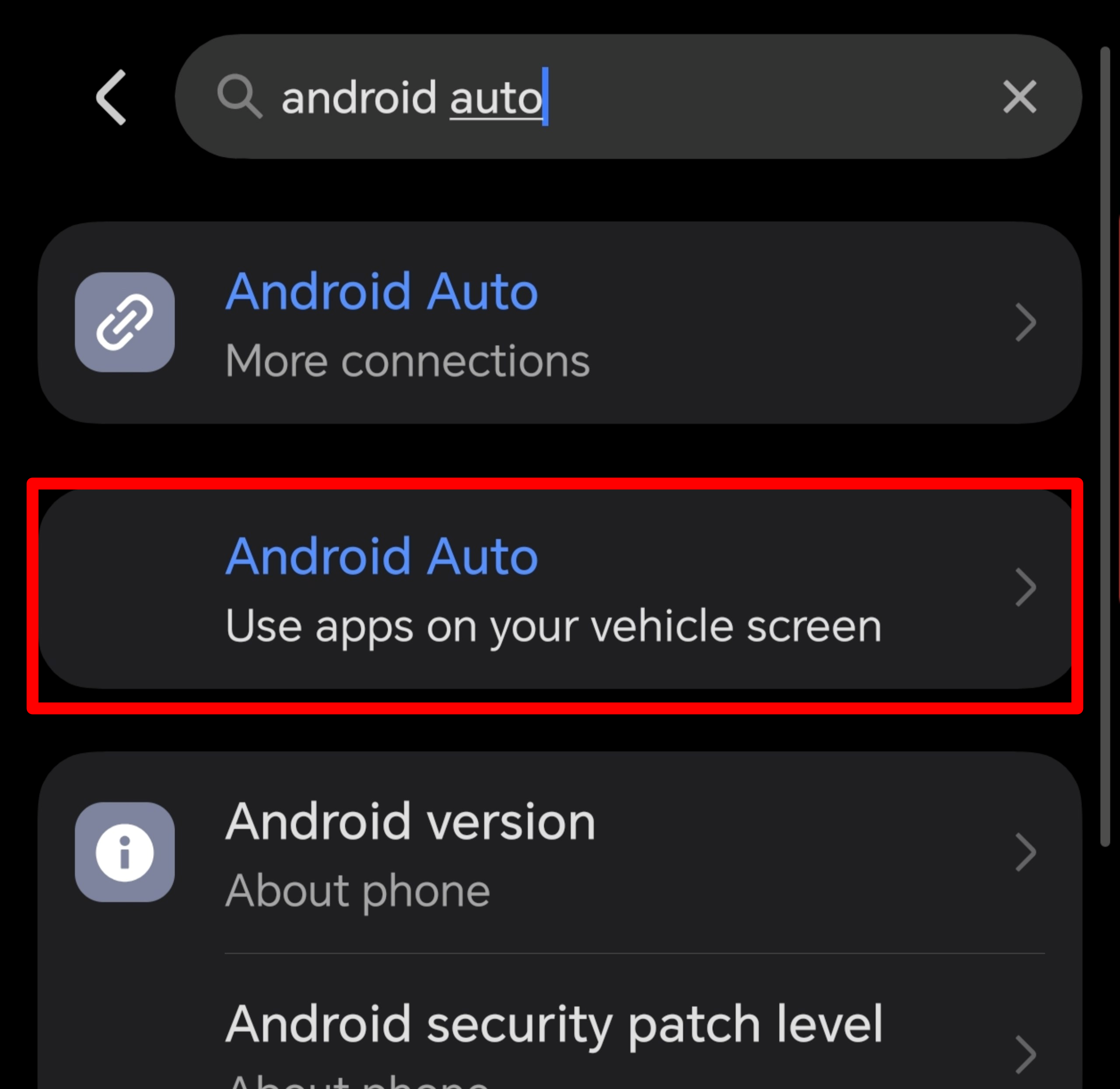
Step 1: On your mobile device
- Android 10 or above: Go to Settings and search for “Android Auto”.
- Android 9 or below: Open the Android Auto app, tap the menu, then select Settings.
-
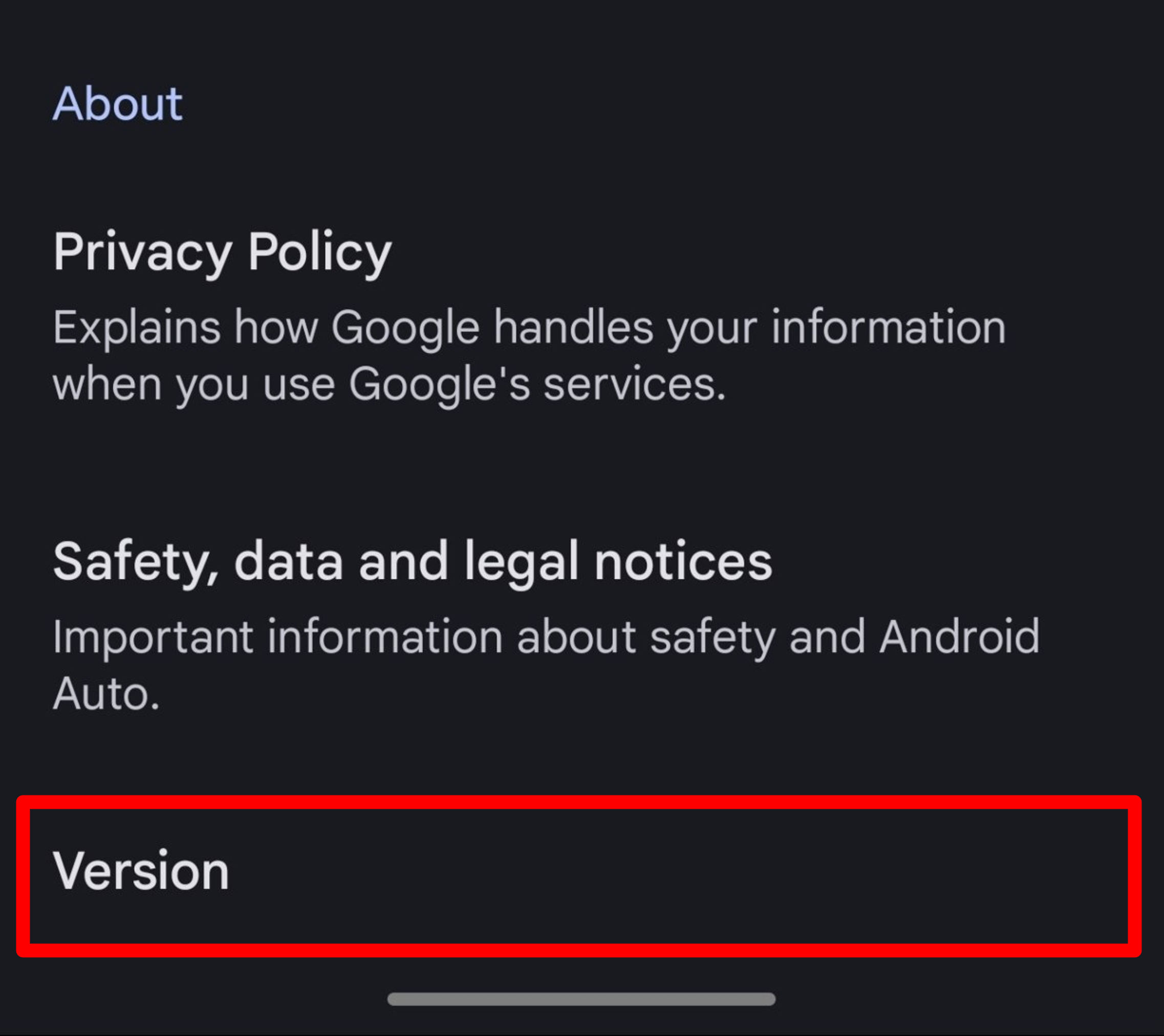
Step 2: Scroll to the “About” section and Tap “Version” 10 times.
-
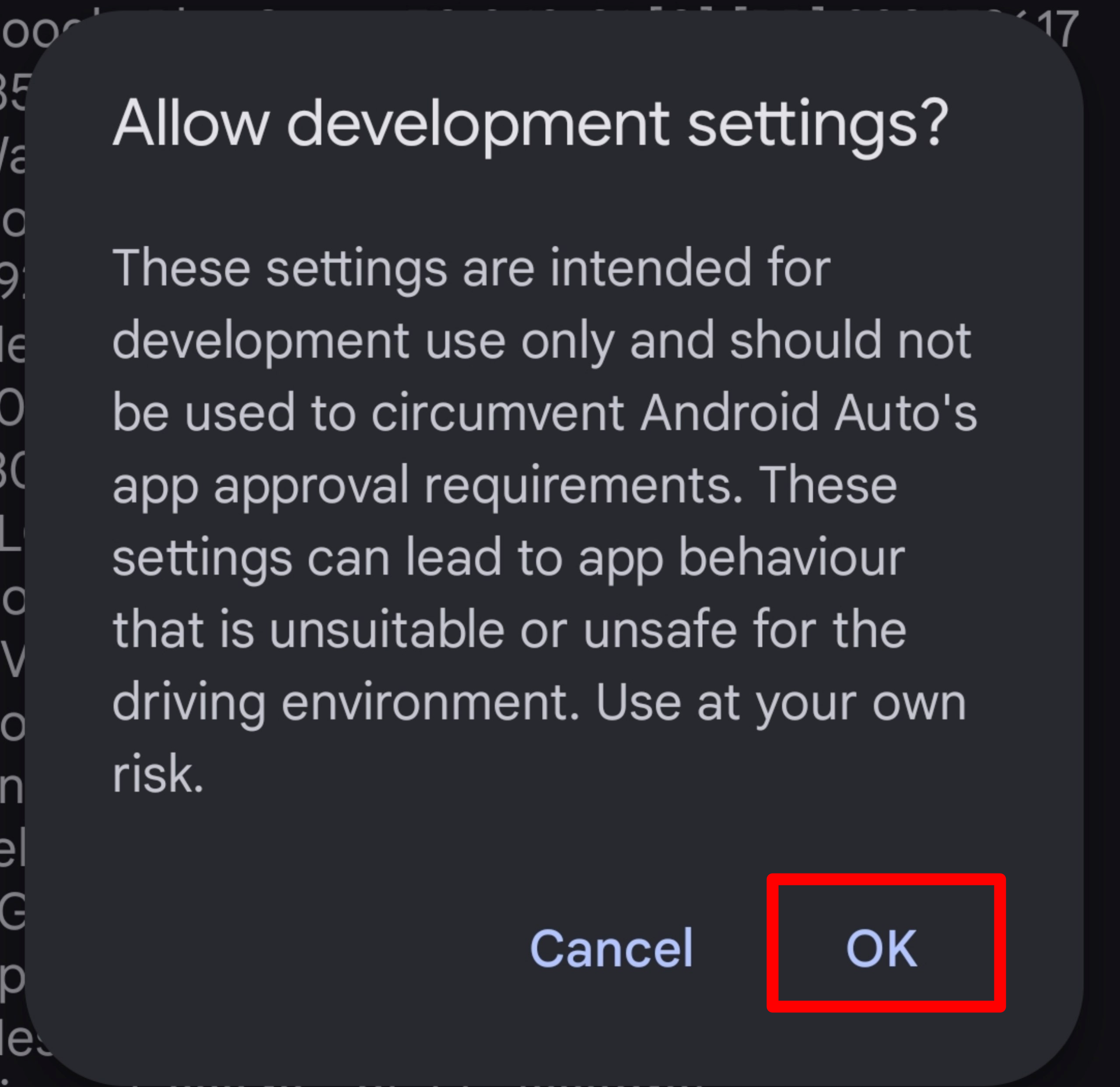
Step 3: When prompted with “Allow development settings?”, tap OK
-
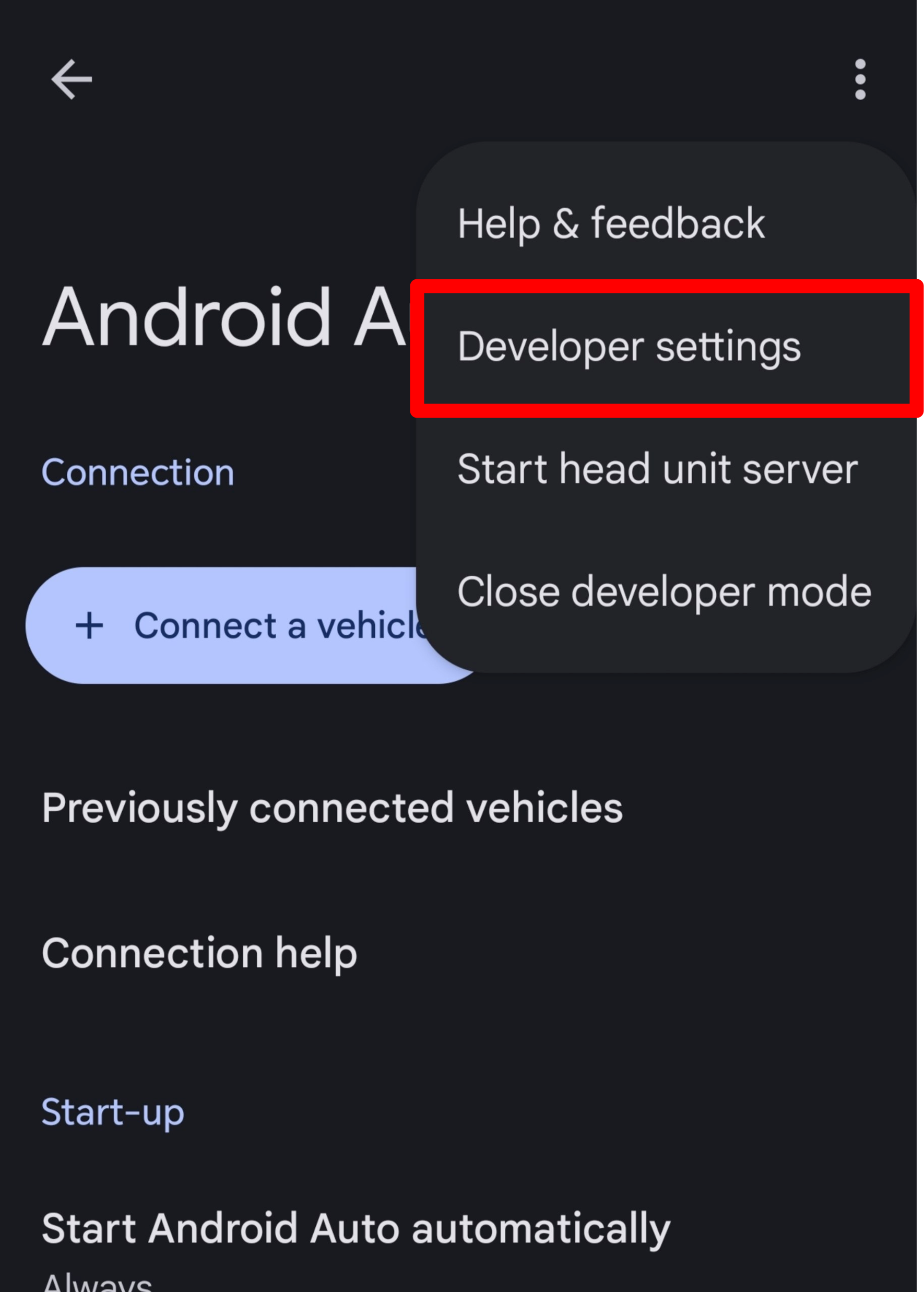
Step 4: Tap the three-dot menu at the top-right and select “Developer Settings”.
-
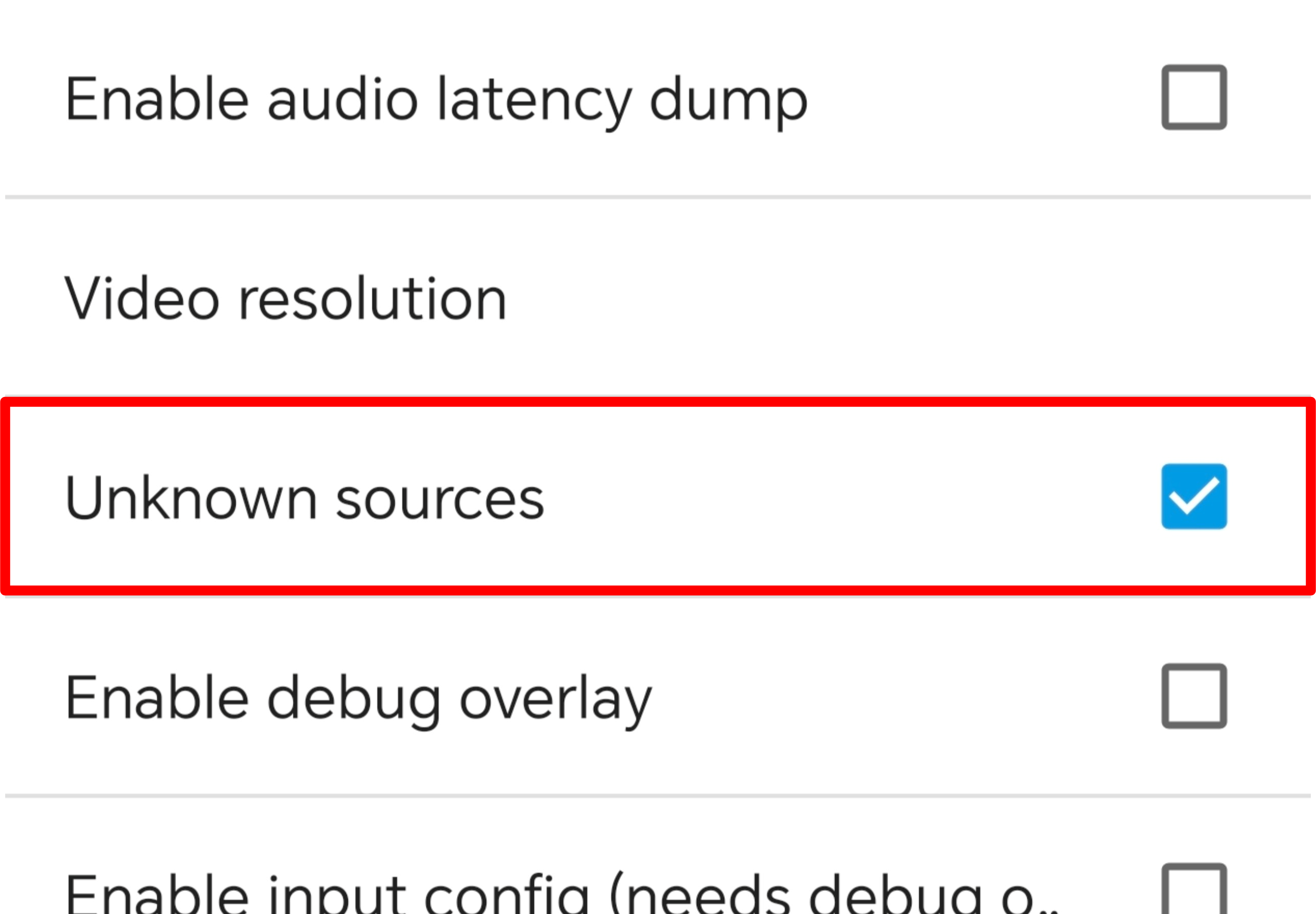
Step 5: Enable “Allow Unknown Sources” to permit installation of CheerVision TV+ (CVTV+) on your Android Auto.
Once the installation is complete, you will be able to see CVTV+ on your Android Auto. To follow driving safety guidelines, the app will only allow audio playback, so you can enjoy music, and radio while keeping your focus on the road.
